Running Commute or A to B Routes
Last updated: September 8, 2026
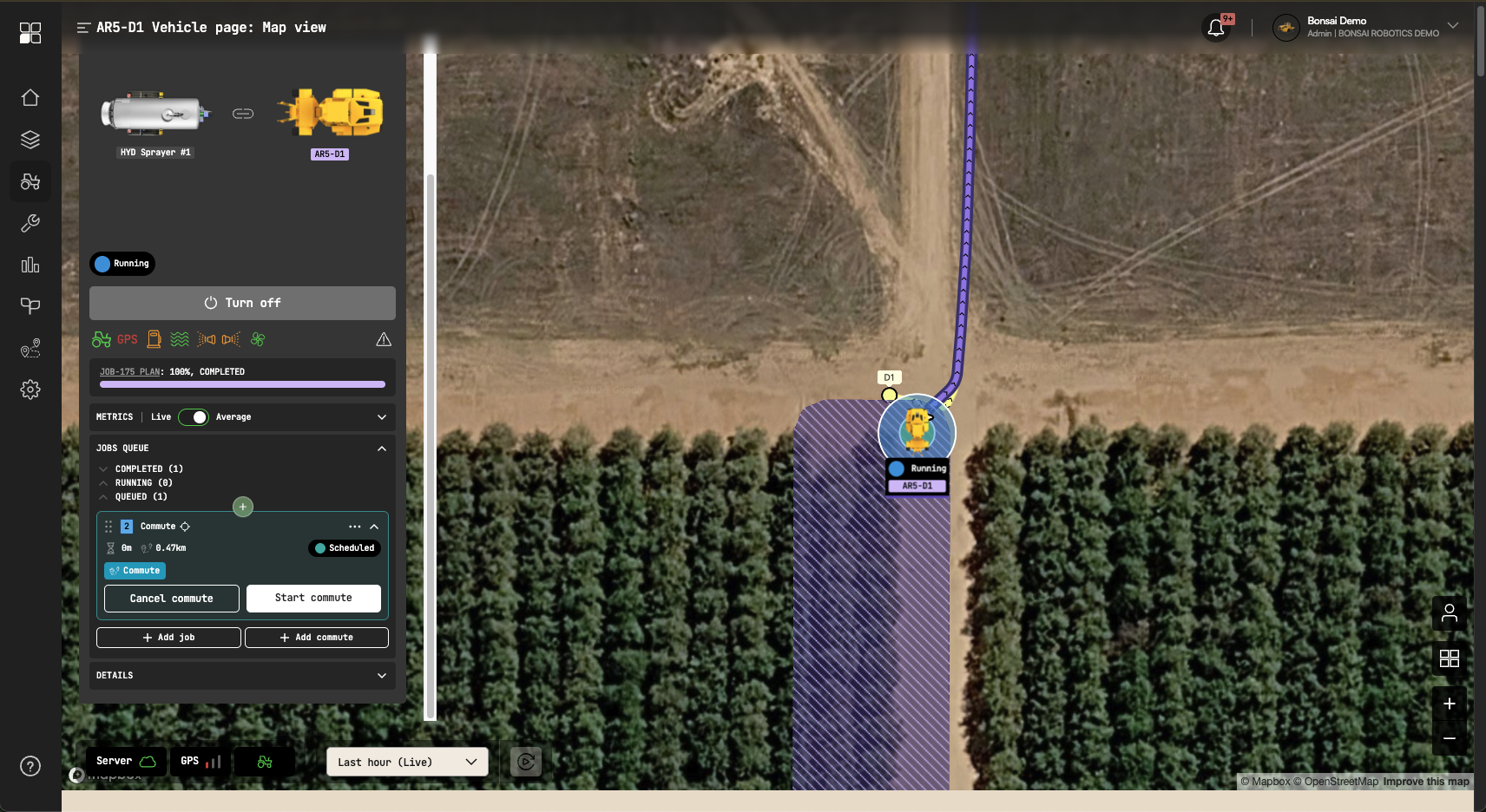
Once you created commute routes to connect all your fields and farm buildings you will be able to program a full day of operations for each machine in advance. The easiest way is looking at the vehicle detail page:
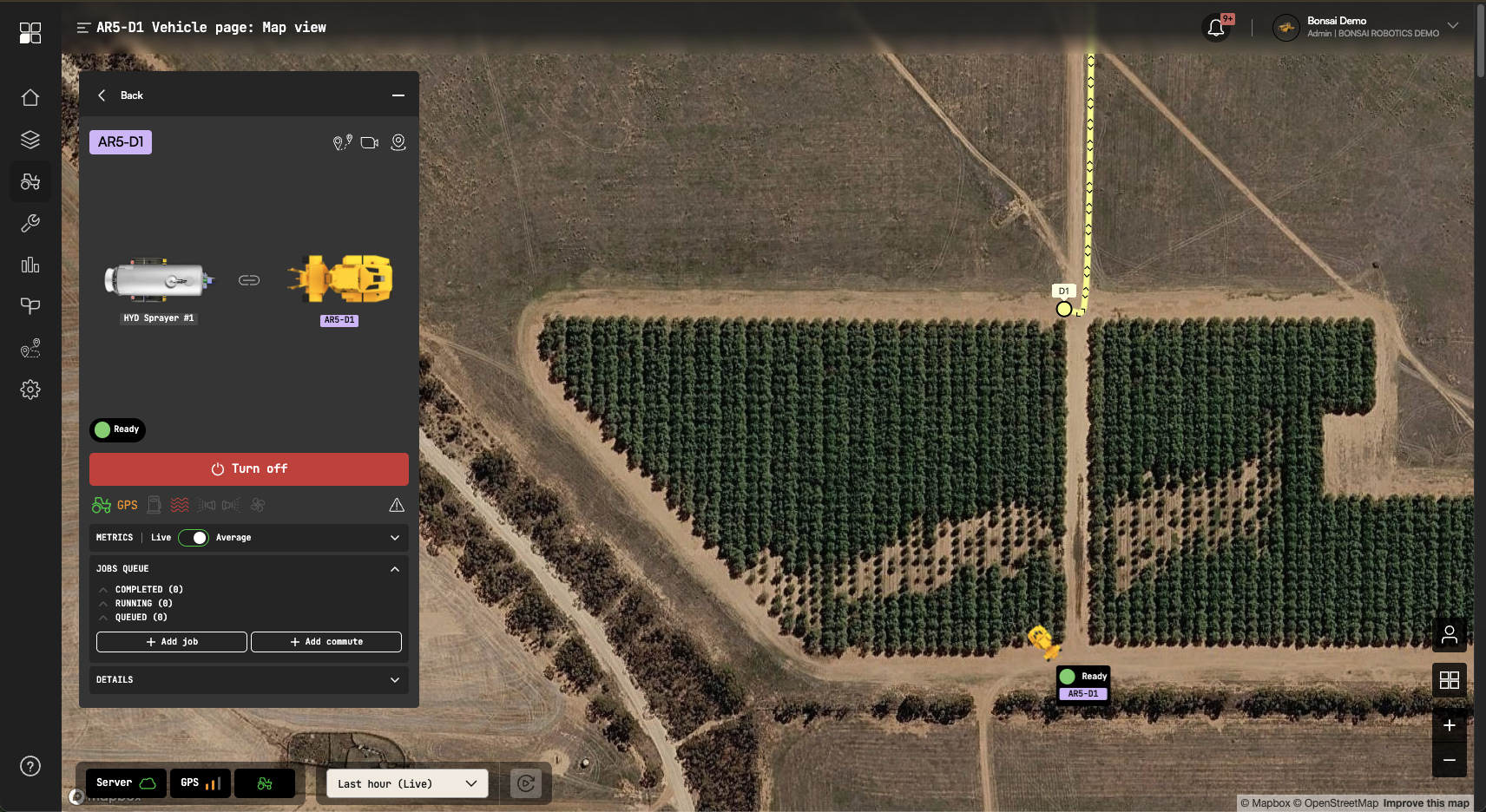
To start, look at the "QUEUED" dropdown menu. You may have jobs executing, scheduled, or none at all. Click "+ Add commute" to get started. A new menu will show up and you will be able to pick a waypoint (named when you created it) or click the "pin" icon to use your mouse to pick.
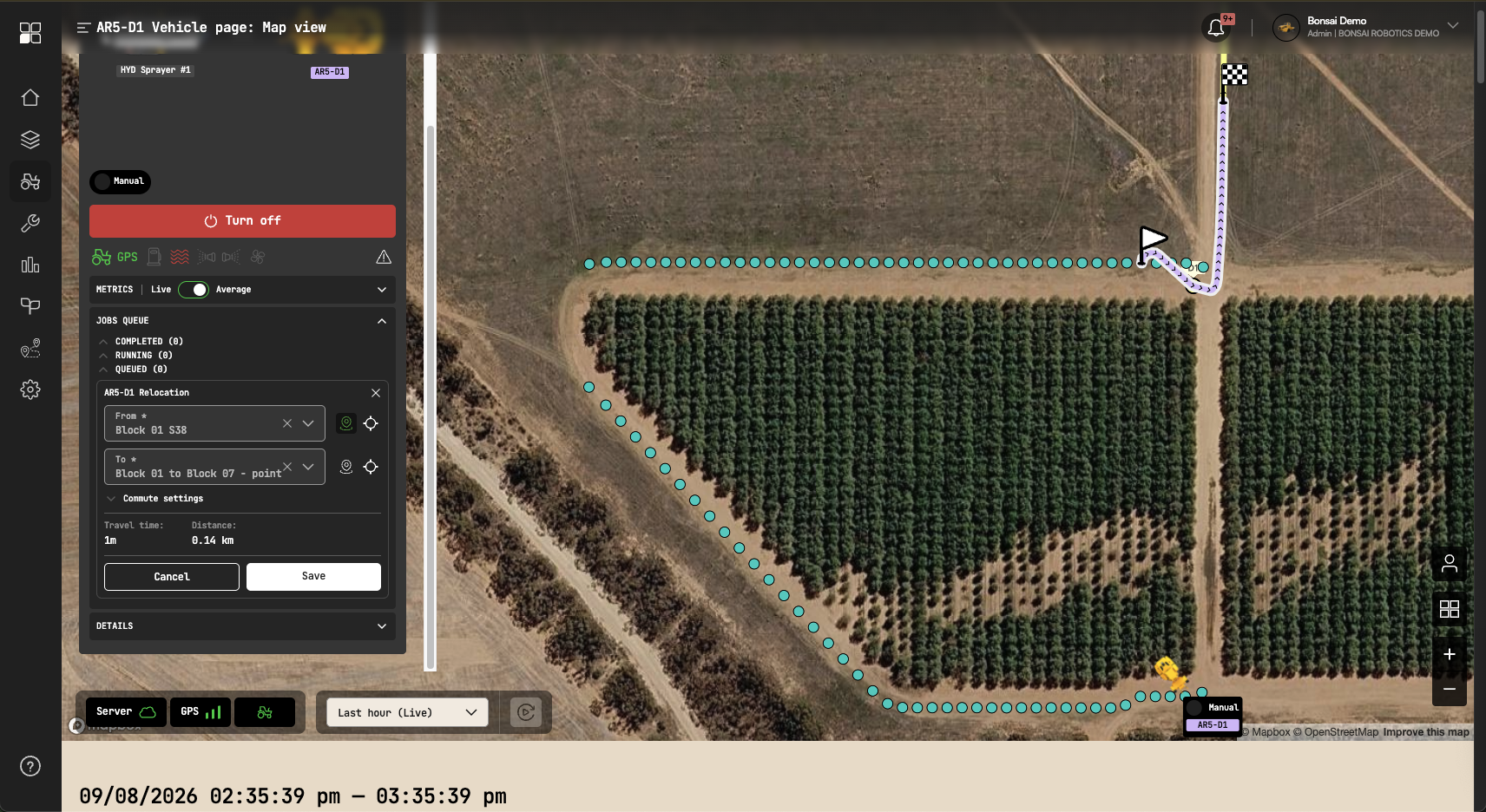
You will see that every beginning and end of a row show as a blue dot. Pick any of them and the a start flag will mark it.
This allow you to start/stop in whatever position a job will start and finish.
Click again to drop the finish point of the route. The yellow line are the routes you created before and any point along it is also available. Once you picked both points, click "build route" and it will show in purple.
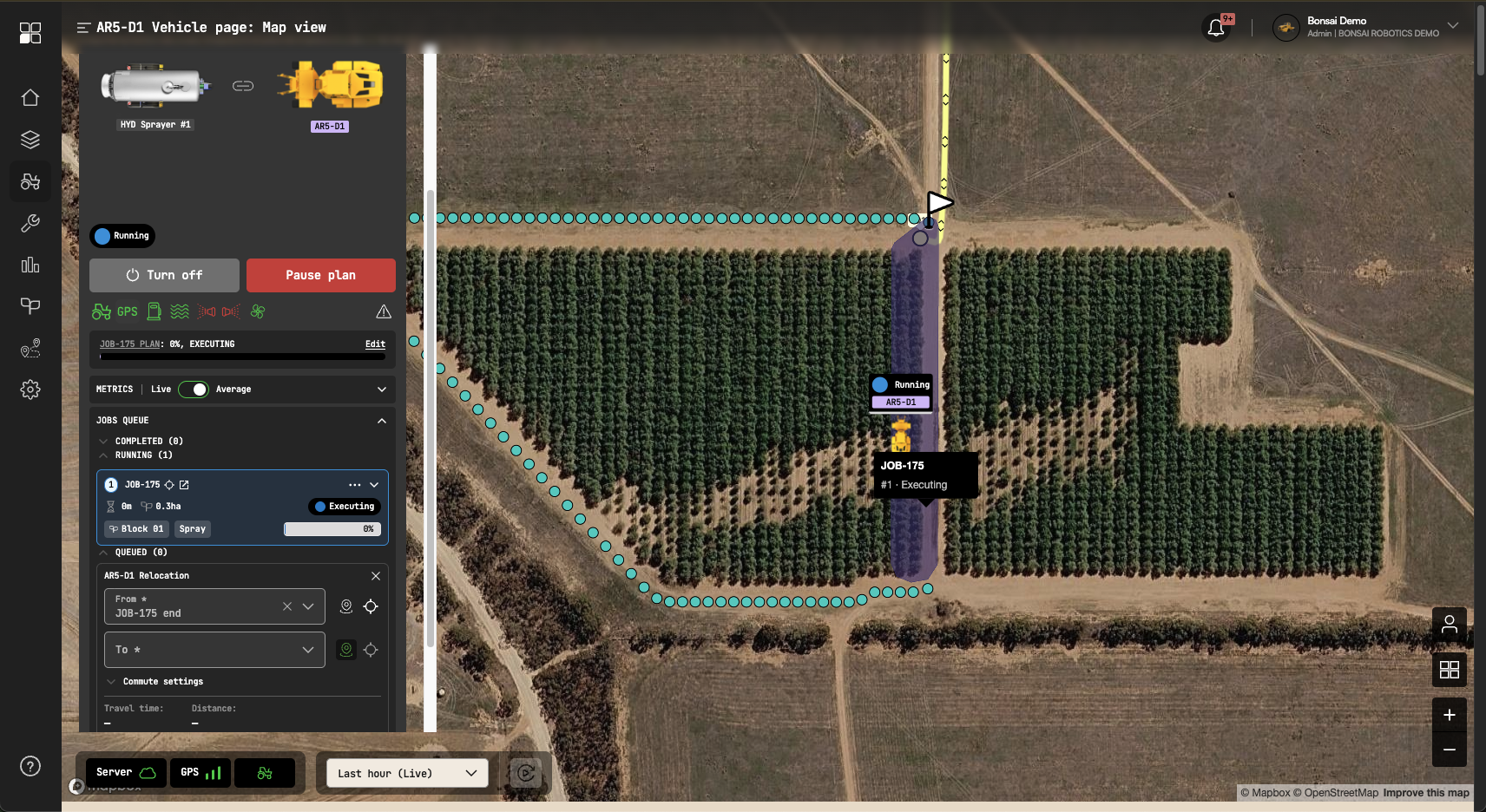
If you are building a route and there is an existing job on the queue, you can click on the job to pick it as an start or ending point. It will automatically select the swath point that best match the requirement.
when you save the commute, the vehicle dashboard will show there is a new route queued.
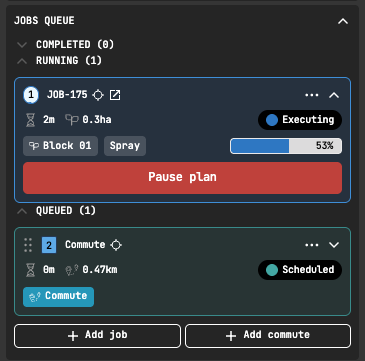
Once the job is finished, you will be able to click and slide to start the commute. Note that the circle around the start of the route tells if the machine is close enough to the starting point (similar to what happens when starting jobs). When the circle is green, you are good to go).
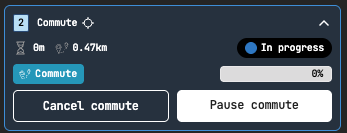
During the commute, use the dashboard to monitor progress, cancel, or pause the commute, if needed.
Just like when running a job, if an error or obstacles shows up, the machine will notify you and you can use the camera streams and the TeleOp buttons to solve it.
Planning a machine's work day
Use the Jobs page to build all the jobs planned for a machine on a given day. When you create multiple jobs for a machine, Bonsai Pilot will detect that the end of a job doesn't match the beginning of the next one and suggest a commute.
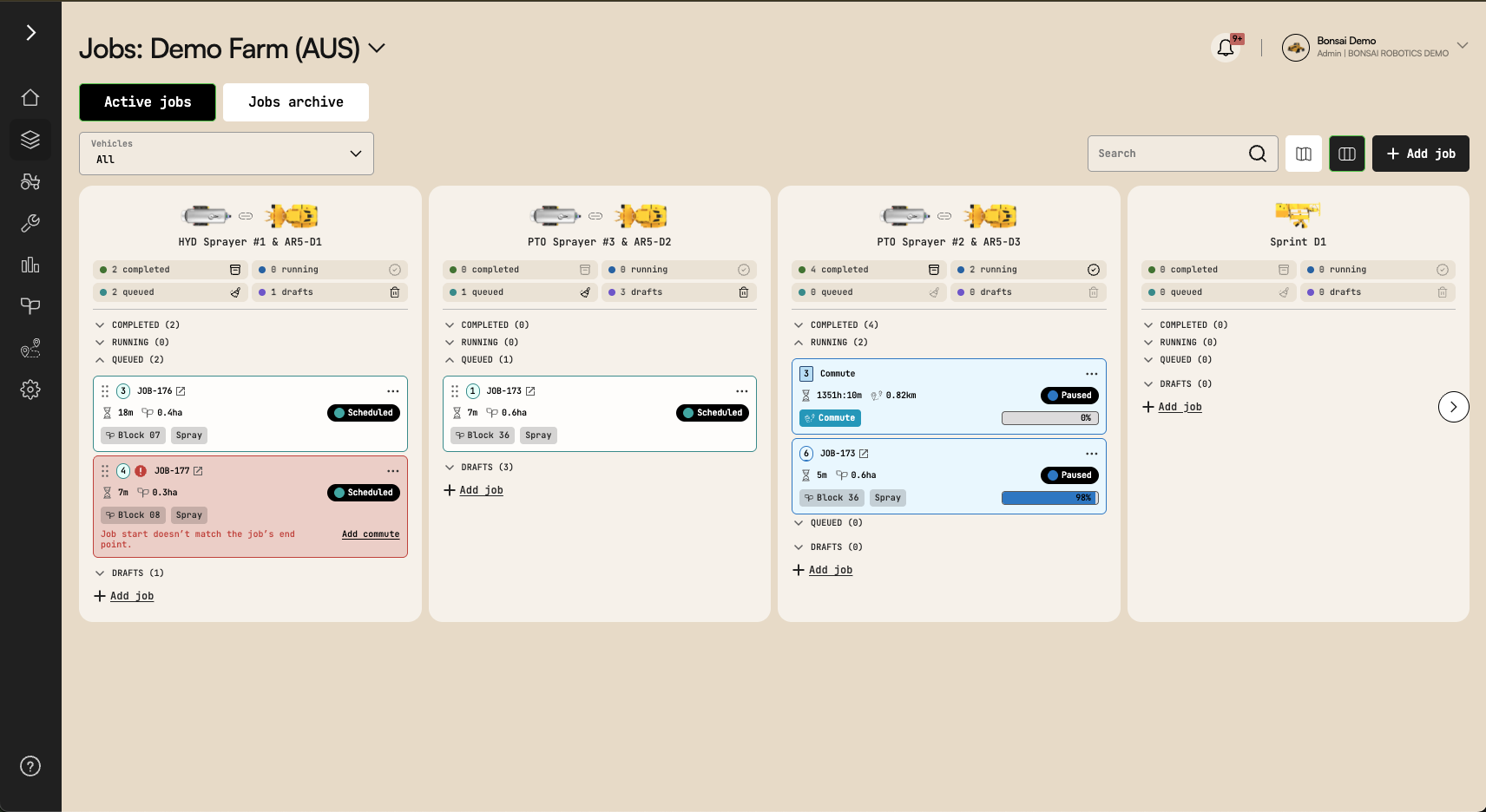
Clicking "add commute" will automatically connect the two jobs. Sometimes, minor adjustments to the job are required, but you will be notified.
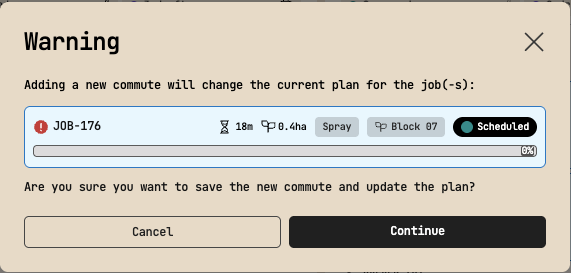
Click "continue" and a new commute will show between the two jobs. You can add as many as you want and plan you upcoming work day(s).
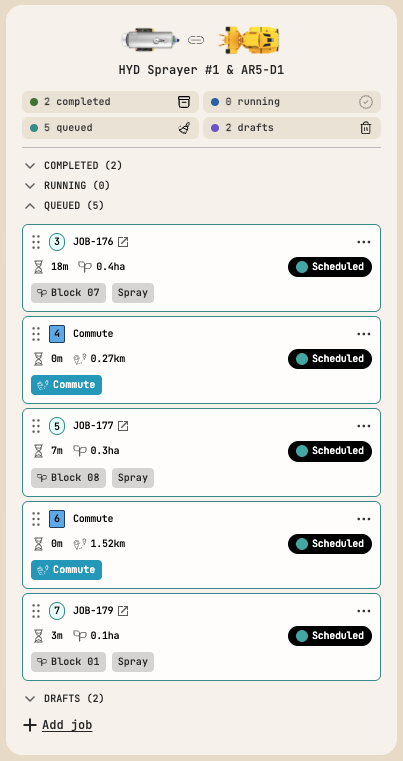
Use the 6 dots (⠿) on each card to change the queue order and the right side menu (⋯) to remove, edit, or delete jobs and commutes.