Home Screen
Last updated: November 11, 2026
The home screen is the first tab on our left side menu and the landing page when you open Bonsai Pilot. Here you will see a summary of the last farm you visualized or "All Farms". Use the drop down to choose between farms and the map will fly there.
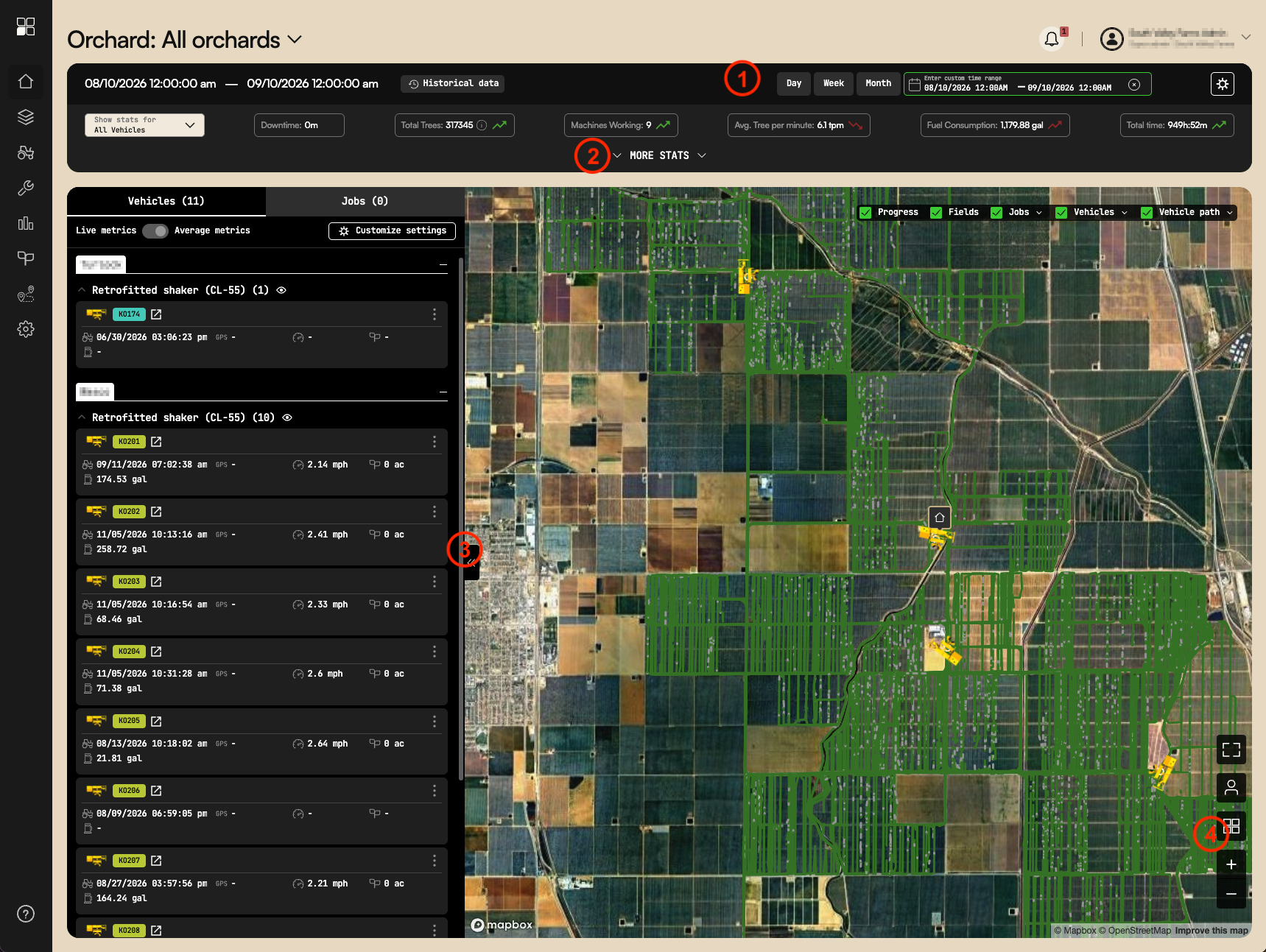
Use the upper left drop down menu to select between farm (or all of them). All the information in this screen will be sorted and filtered according to that selection. There are 4 main controls here:
Time and Metrics Overview Bar: controls the time window for the data presented on the whole screen.
Stats Overview: a drop down menu that expands selected metrics.
Vehicles dashboard: show you details about all vehicles available on the selected farm and their state on one tab, and the ongoing jobs on the next.
Map controls: toggle what and how you see data on the map for vehicles, jobs, fields, routes, and even other users.
You can also use typical controls on the map to see where the machines drive over that period, and hover over them to see their current status.
Time and Metrics Overview bar
This bar controls the amount and time window of the data displayed on the whole screen. It defaults to showing the last 24 hours, showing your current time together with the "Live Data" indication.

Use the Day, Week, and Month buttons to select those time periods and you will see the start and end of the time window and the indication that you are viewing historical data.

Use the calendar button to select a custom time span, and the arrows to quickly move to previous day, week, and month.
When you change the time window, you will notice that metrics on the squares change accordingly (as averages). Use the drop-down menu to filter the numbers by vehicle type.
If you prefer to use different numbers, click the gear icon on the right side. You can disable and enable different ones with the eye icons. There are averages, totalization, and an extensive set of metrics. Saved changes will persist after you login, but there is a "Restore defaults" button available.
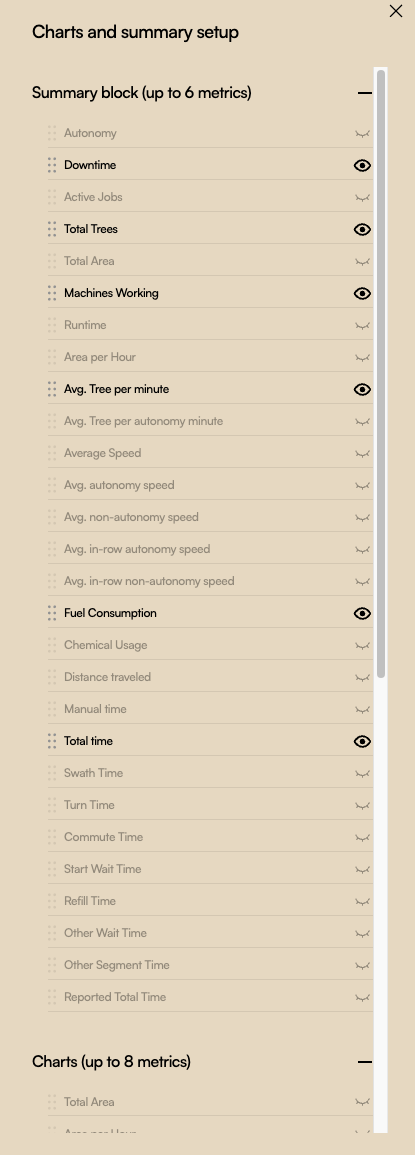
Not that some metrics might not be relevant for machines with TeleTrace only, as Bonsai Pilot is also used with Bonsai's autonomous fleet.
More Stats
Using the arrows open the "MORE STATS" panel, which give access to 8 extra metrics in the form of cards. Clicking the cards bring them to the chart below.
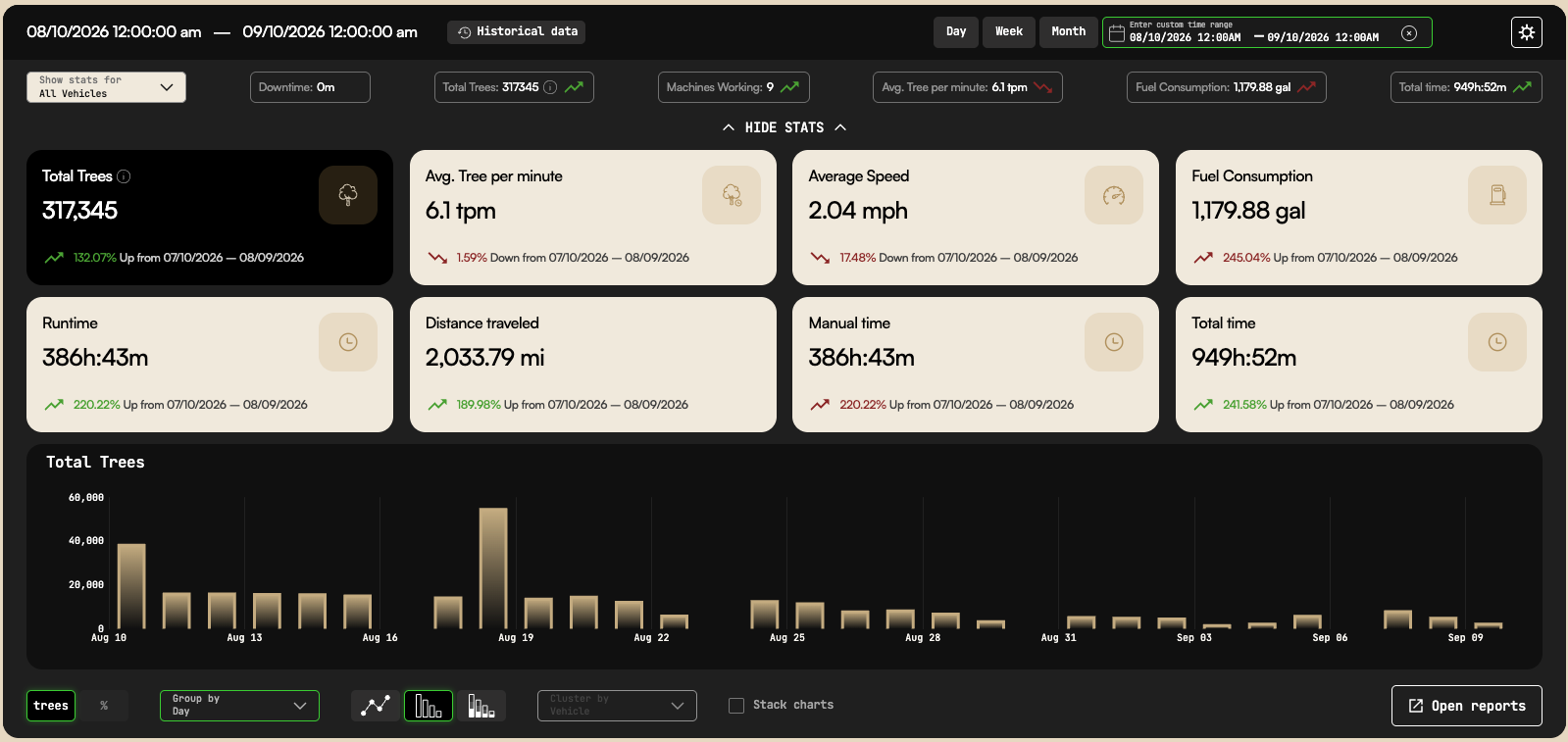
The controls under the chart allow you to change grouping, aggregation, and other options. We recommend you navigating the options to understand which ones suit your operations better.
Similar to above, the gear icon on the upper ribbon also give you the option of enabling and disabling a lot more metrics.
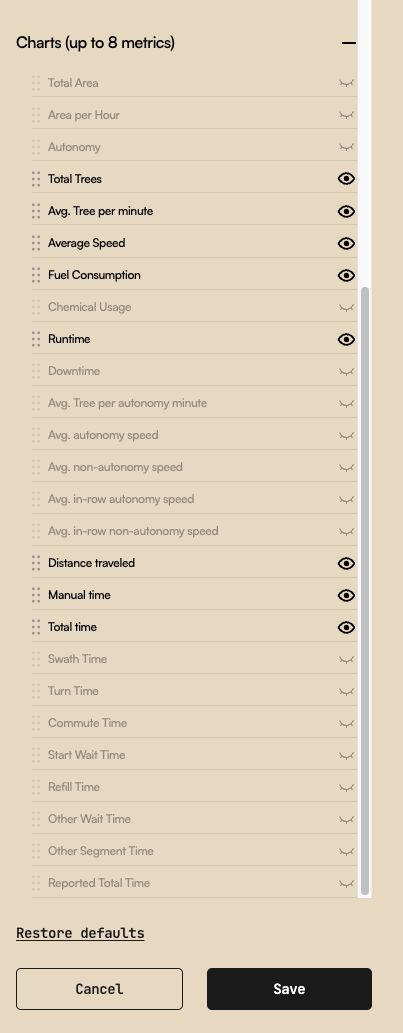
Finally, the above charts were build for quick visualization. If you want to build permanent charts, we recommend the Reports feature, with a link to it at the bottom of this chart. Clicking the "MORE STATS" button again colapses the panel back to the upper bar.
Vehicles Dashboard
Clicking the arrow on the left of the map opens the vehicles and jobs dashboard. Unless you also own autonomous equipment, the jobs tab will be empty. Use the toggle button to switch between live and average metrics, with averages being calculated over the same time window selected on the upper bar.
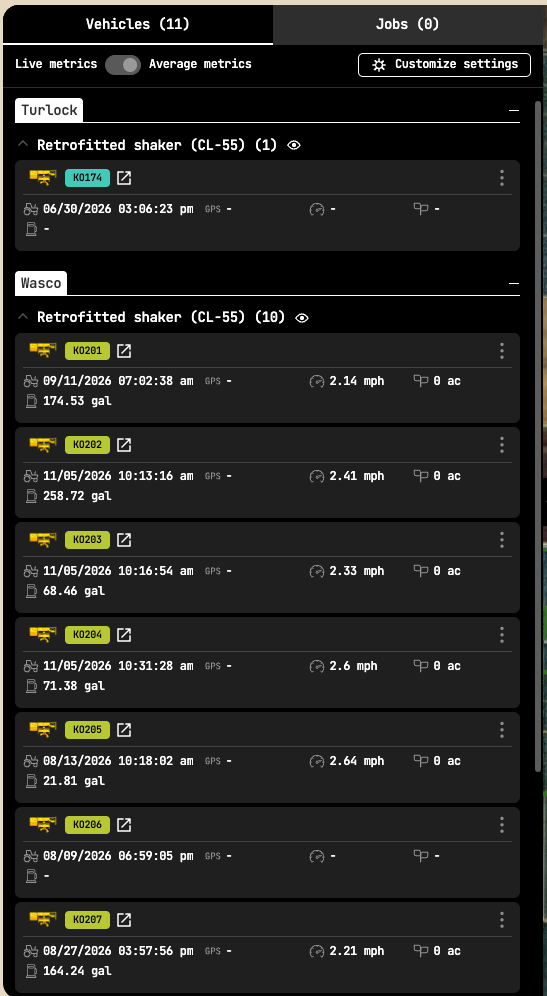
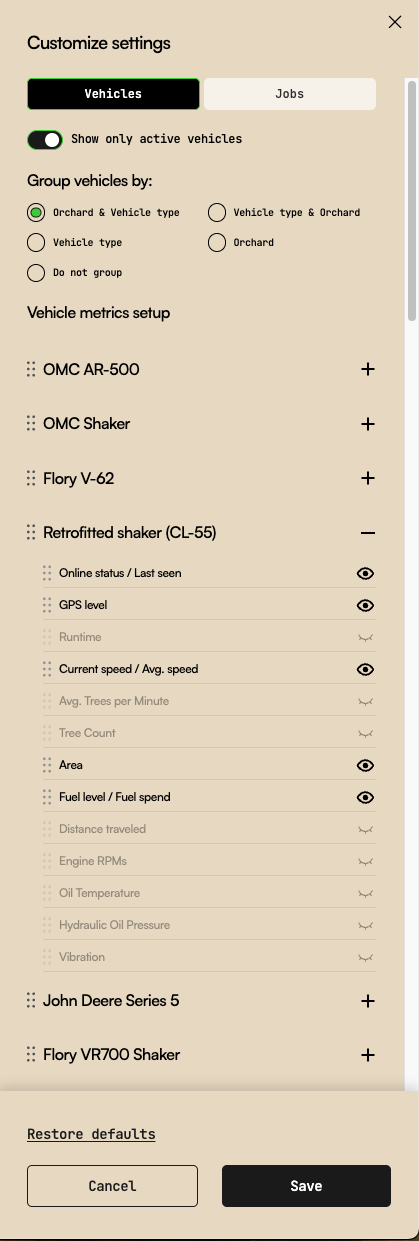
Machines are organized by farm and type, by default, but you can change it using the "customize settings" button on the right. collapse/Scroll down to find the options for "Retrofit Shaker CL55".
Clicking the 3-dots menu will allow to toggle "follow" mode, when the map will shift to keep that machine on the center of the map.
Map Controls
On the bottom right side of the main map you will find controls that help you better visualize location of machines, fields, routes, and other users - one particularly interesting is to change color of the vehicle tracks. Clicking the 4 squares open all the options:
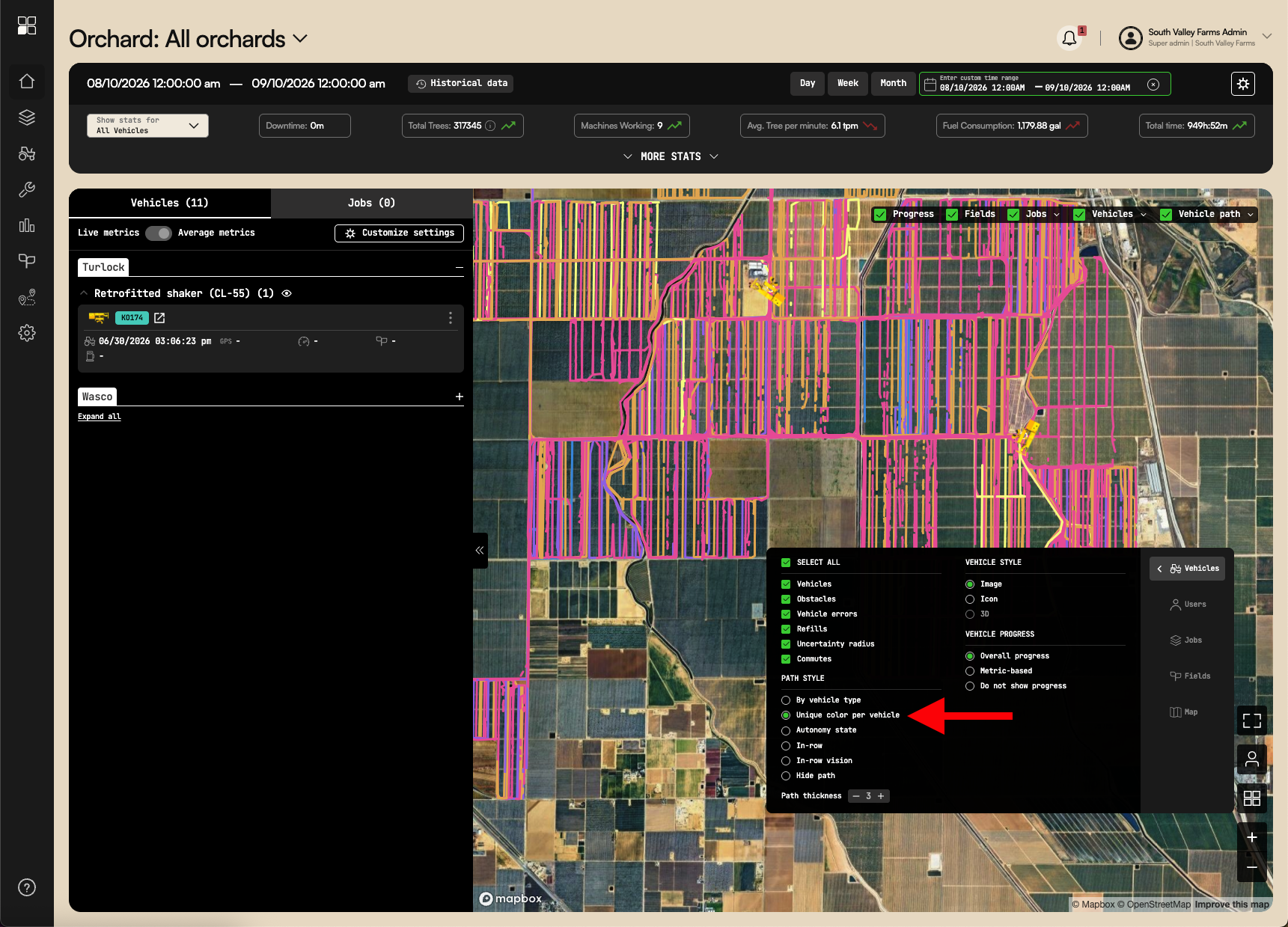
On Vehicle, toggle visibilities on the pins, what which breadcrumb color means, and job metric colors (e.g.: spraying rates met).
On Users, toggle visibilities of your and other users (this requires the users to have their location services enabled).
On Map. toggle details of the map itself.
Jobs and Fields are only used on autonomous equipment and can be ignored here.
If you have questions or notice problems on this or any other feature of Bonsai Pilot, contact support@bonsairobotics.ai.